

Published Apr 23, 2026 • 7 min

Before any of this works at full capability, two things matter.
Download the Claude desktop app, not the browser version. Several of the features below (computer use, skills, connectors) either require or work significantly better in the desktop environment.
Get the $20/month plan. The free tier is genuinely useful for basic queries, but the features covered here, extended context, computer use, scheduled tasks, projects with memory, are Pro features. For anyone using Claude professionally, the plan pays for itself quickly.
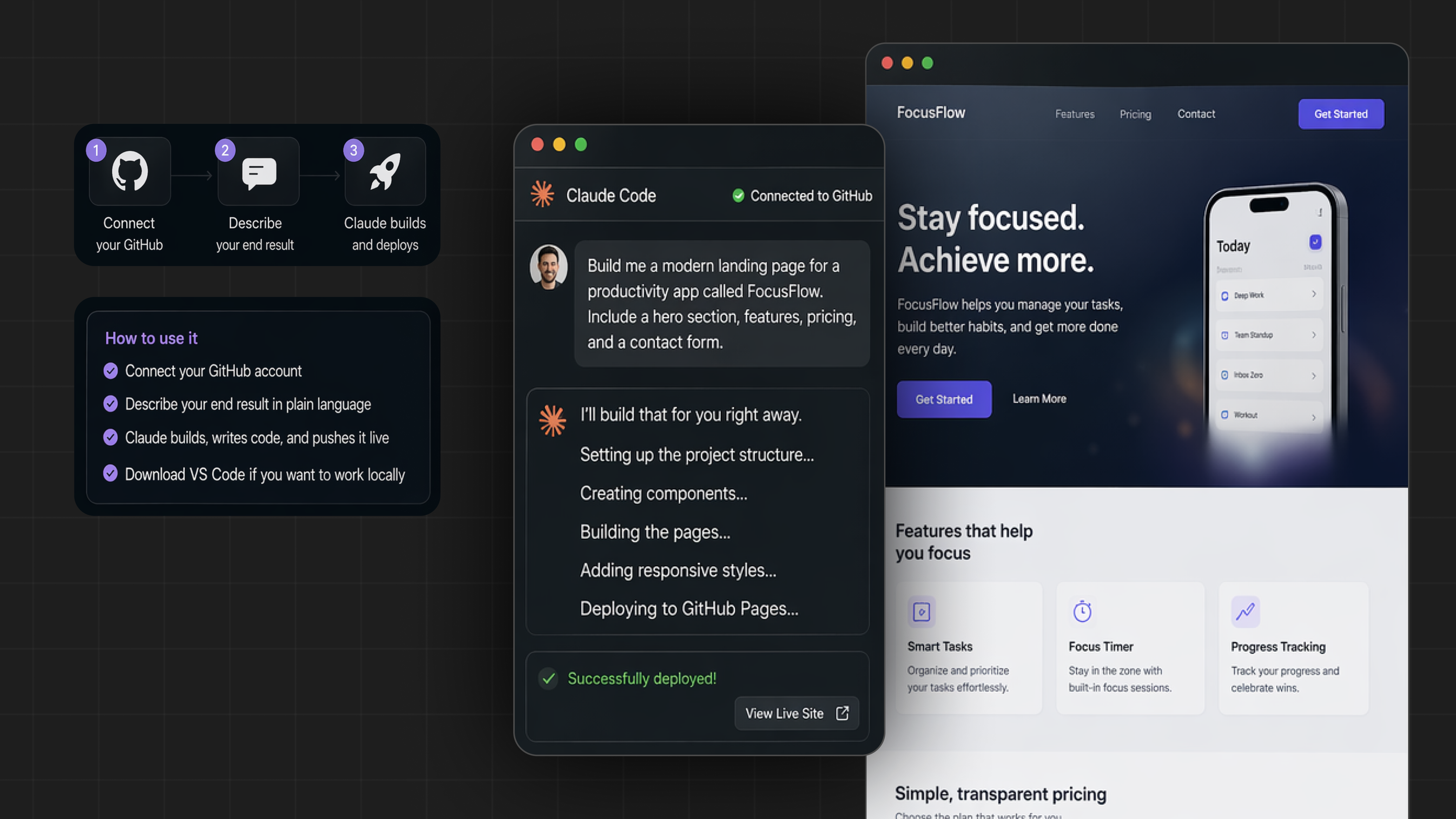
Claude Code connects directly to GitHub. You describe what you want to build, in plain language, with no technical specifications required, and Claude writes every line of code, handles the file structure, and pushes it live.
To use it: connect your GitHub account, describe your end result, and download VS Code if you want to work locally. Enabling “Skip Permissions” in settings removes the approval step for each file change, which speeds up iteration significantly.
You do not need to understand the code it writes. You need to be able to describe what you want clearly.
This is the feature that surprises people most when they see it in action.
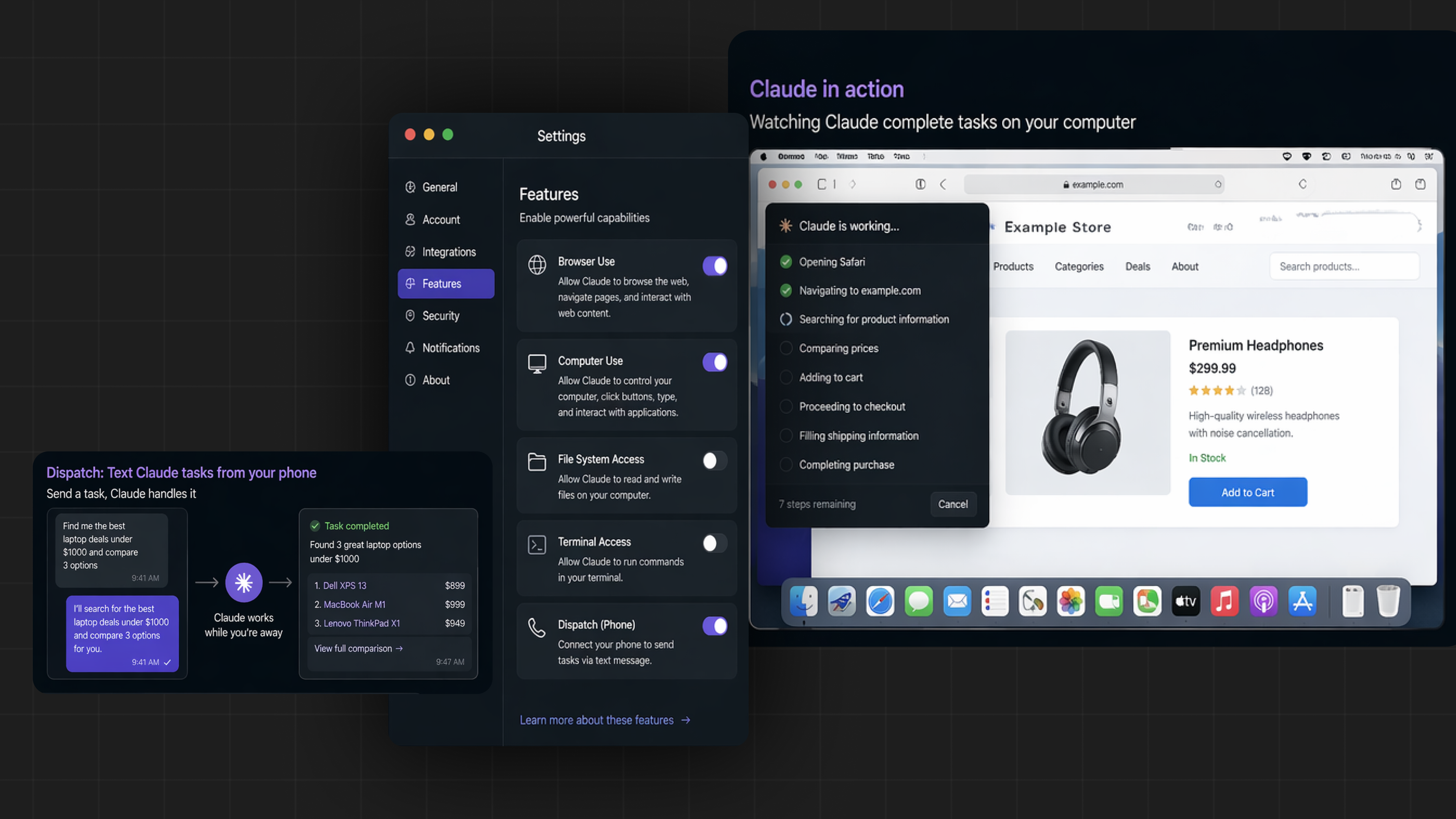
Go to Settings and turn on Browser Use and Computer Use. Once enabled, Claude can navigate websites, click buttons, fill forms, and complete multi-step workflows on your Mac, without you being present.
You can also connect your phone using Dispatch and send tasks via text message. Claude works through them while you are away from your desk.
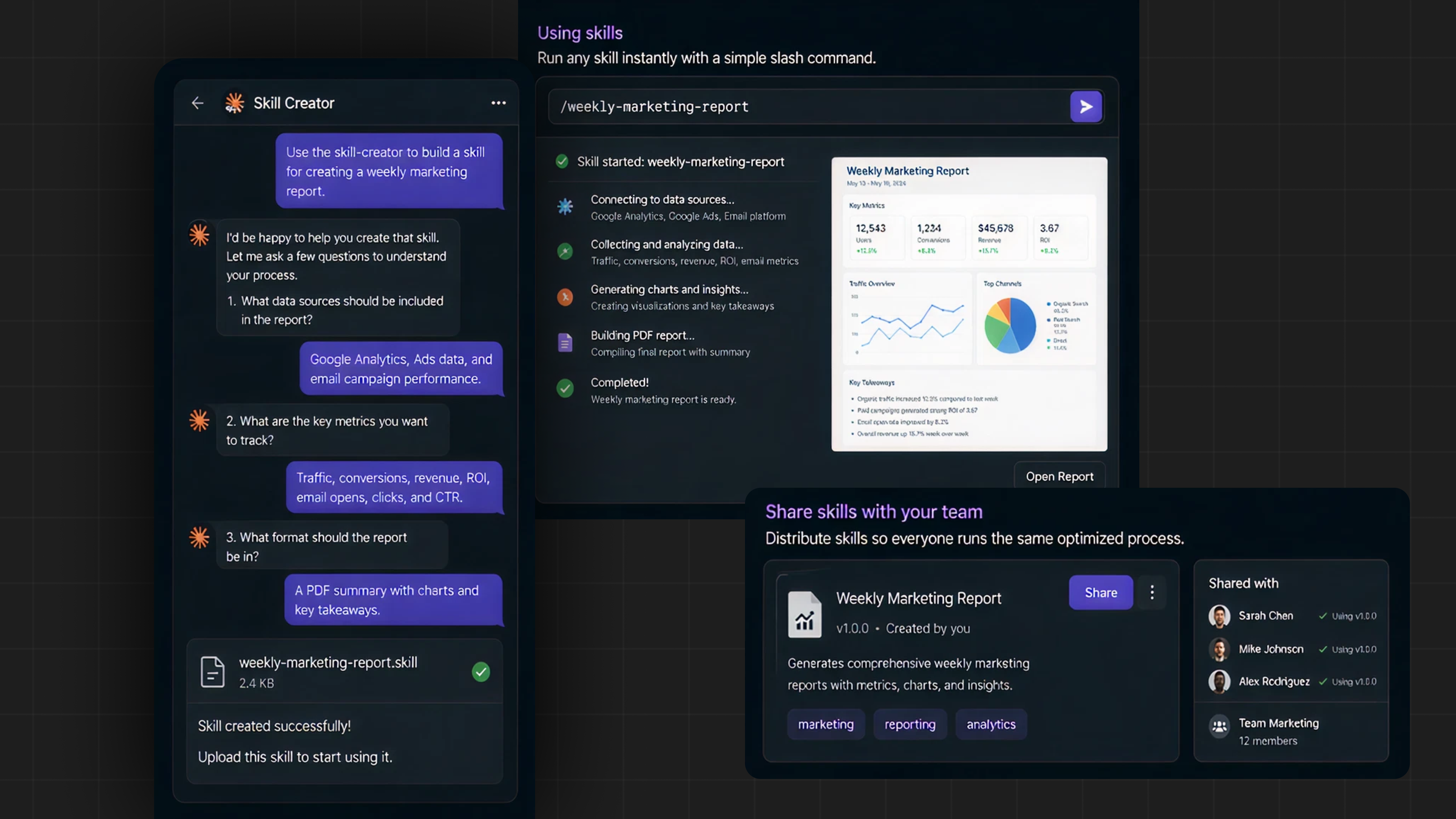
Skills are saved workflows that Claude executes on demand.
Type “Use the skill-creator to build a skill for [your task].” Claude interviews you about the task, generates a skill file, and you upload it. From that point, typing /skillname triggers the full workflow automatically.
Skills are also shareable, you can distribute them to teammates so everyone on your team runs the same optimized process without re-prompting from scratch each time.
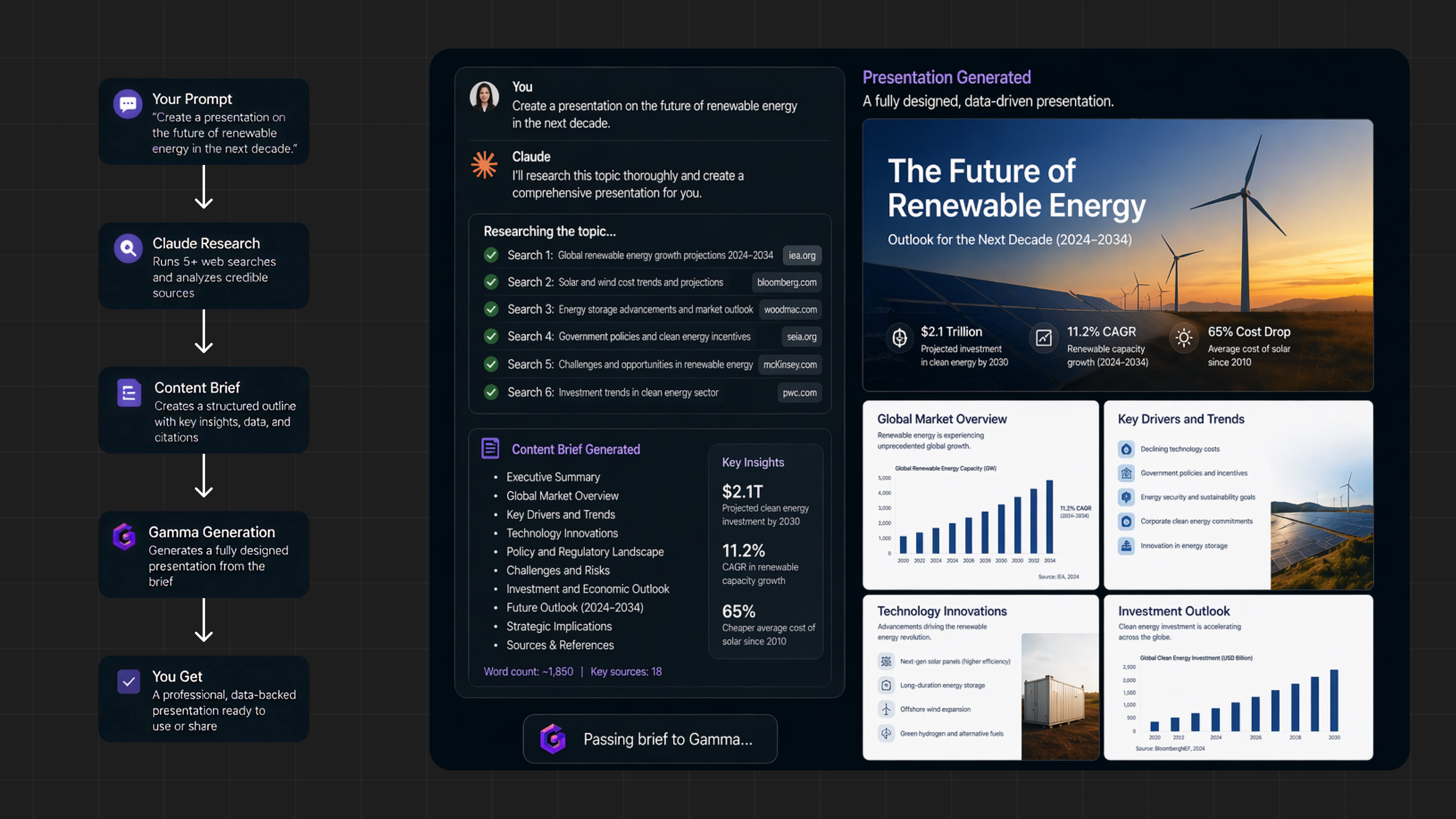
Claude does not just make slides, it researches first.
Give it a topic and it runs five or more web searches, builds a structured content brief, and passes it to a tool like Gamma to generate a fully designed presentation. The output includes real data, structured arguments, and a visual layout, from a single prompt.
Go to Scheduled, create a new task, write your prompt, and pick a frequency. That is it.
Claude will run the task at the time you set, every Monday morning, every Friday afternoon, daily at 6am, without any further input from you. Weekly competitive research, automated briefings, recurring summaries of incoming data: all of these can run on autopilot.
Claude can create full Excel files from a text description.
Prompt it with something like “Create a 3-year financial plan with formulas for revenue growth, cost structure, and cash flow.” It will build a working spreadsheet with proper formula logic, using the convention of blue cells for inputs and black cells for formula outputs so the model is easy to navigate and edit.
This works for financial models, data analysis templates, project trackers, and any structured data problem that would otherwise require hours in a spreadsheet.
Go to Settings, then Connectors, and browse the available integrations. Claude connects to Slack, Gmail, Google Drive, Notion, and more than 50 other applications.
Once connected, Claude does not just read these tools, it can write to them and act inside them. Draft and send emails, create Notion pages, search Drive for a document and summarize it, post to a Slack channel. Your entire tool stack becomes Claude-accessible.
Cowork is Claude’s desktop tool for file-based work. Point it at a folder, and it reads everything inside, documents, spreadsheets, previous outputs, reference files.
It asks clarifying questions before it starts, then delivers finished files: .docx reports, .xlsx models, .pptx presentations. One well-structured .md file describing your context replaces dozens of individual uploads and produces dramatically more consistent output.
Inside Cowork, Projects give Claude persistent memory within a defined scope.
Create a project, and Claude builds on previous sessions rather than starting fresh. You can prompt “build on last week’s report” and it will. The memory is scoped, it knows what is relevant to this project without bleeding in context from unrelated work.
This is the feature that most closely replicates having a consistent collaborator rather than a stateless assistant.
Go to Cowork, then Customize, then Browse Plugins. You can install plugins tuned to specific roles and workflows.
Marketing teams get content drafting commands. Legal teams get contract review workflows. Each plugin can be customized to your company’s conventions, tone, and templates. Type the slash command and the plugin fires — no prompt engineering required.
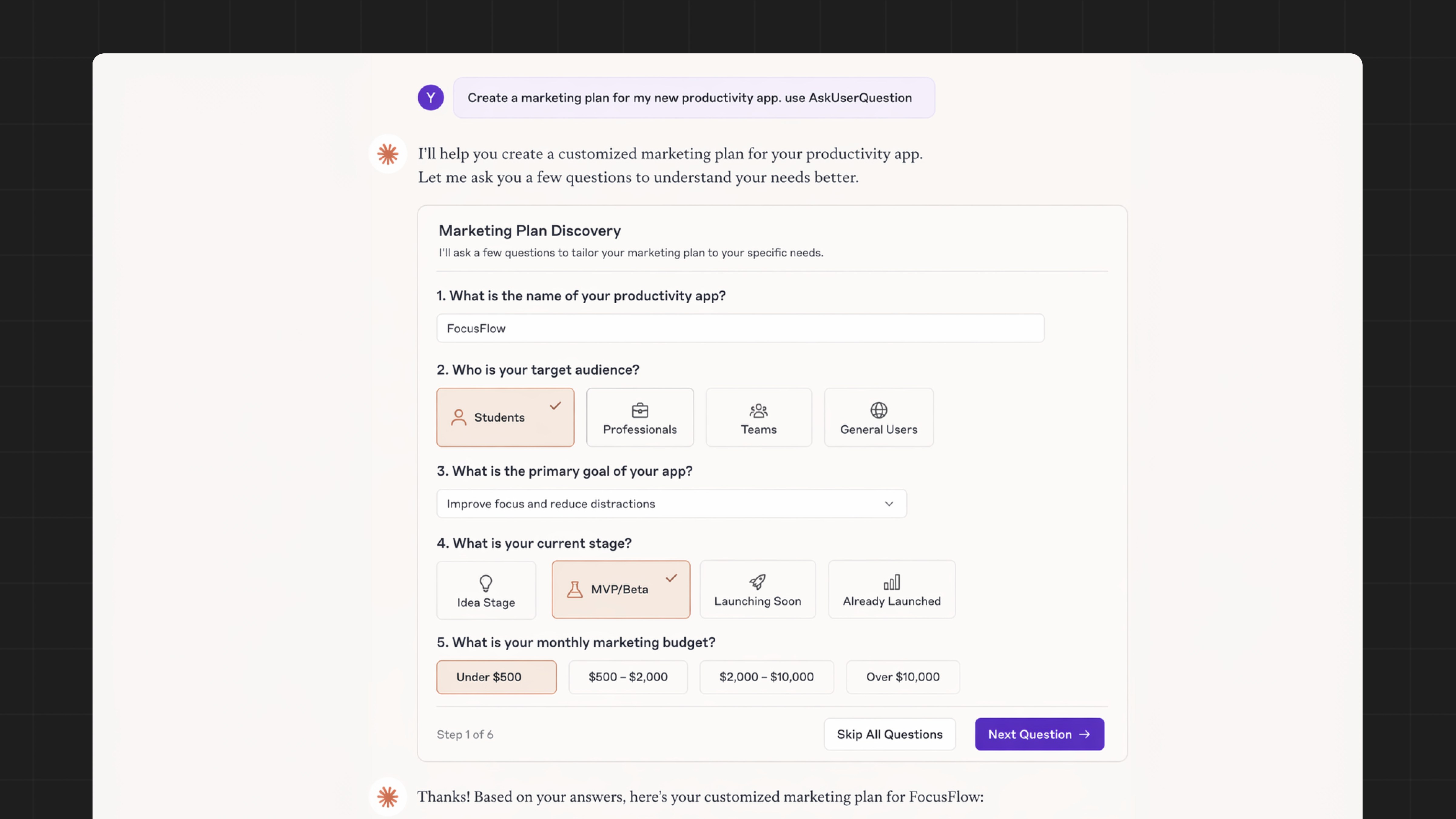
Most people spend time crafting long, detailed prompts to get good output. There is a faster approach.
Add “use AskUserQuestion” to any prompt. Claude generates a clickable form with structured questions rather than asking you to specify everything upfront. You click through the options, and it produces output calibrated to your actual needs, without you having to anticipate every variable in advance.
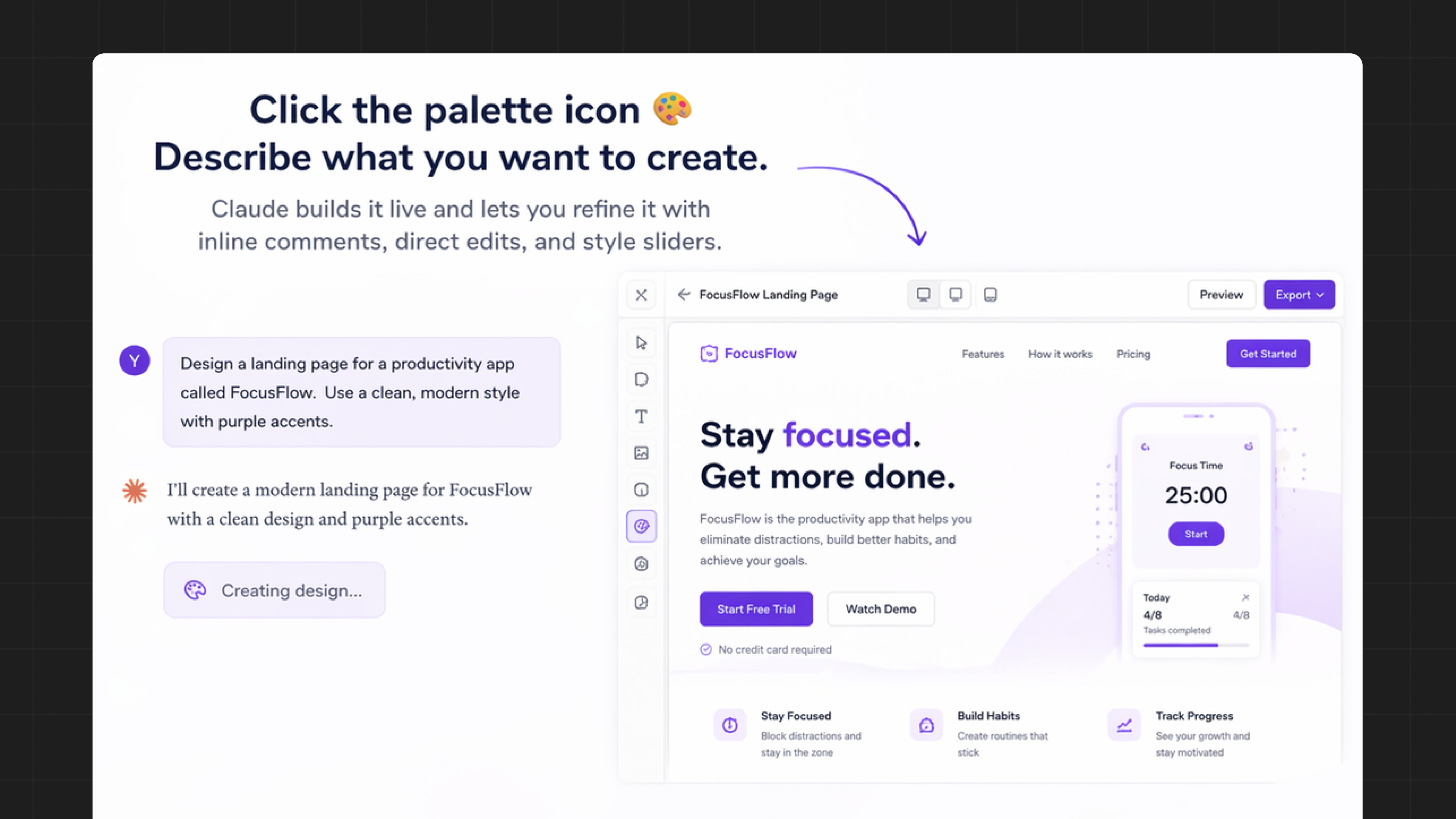
Click the palette icon in the interface. Describe what you want to create. Claude builds it live and lets you refine it with inline comments, direct edits, and style sliders.
Finished designs can be exported to Canva, PDF, PowerPoint, or directly into Claude Code if you want to use them in a web project.